Azure DevOps MCP Server with ToolHive Operator
toc
Introduction
This guide describes how to run an Azure DevOps MCP (Model Context Protocol) server in Kubernetes using the ToolHive Operator. This enables AI assistants like Claude, Open WebUI, or other MCP-compatible clients to connect directly to your Azure DevOps environment.
What is MCP?
The Model Context Protocol is an open standard that allows AI models to communicate with external tools and data sources. Instead of manually copy-pasting context, an AI assistant can directly:
- Query and create work items
- Search repositories and browse code
- Manage pull requests
- Trigger and monitor pipelines
- Read and write wiki pages
Why ToolHive Operator?
Most MCP servers are stdio-based - they communicate via stdin/stdout. This works fine locally but is challenging in Kubernetes. The ToolHive Operator solves this by:
- Running a proxy pod that exposes HTTP/SSE endpoints
- The proxy communicates via stdio with the actual MCP server container
- Clients can connect via standard HTTP
This means you can use any stdio MCP server and ToolHive automatically turns it into an HTTP service.
Architecture
┌─────────────────┐   HTTP/SSE      ┌──────────────────────────────────────┐
│   Open WebUI    │◄───────────────►│         ToolHive Proxy Pod           │
│   Claude        │                 │  (azure-devops-xxxxx-xxxxx)          │
│   Cursor        │                 │                                      │
└─────────────────┘                 │    ┌─────────────────────────────┐   │
                                    │    │   stdio communication       │   │
                                    │    ▼                             │   │
                                    │  ┌───────────────────────────┐   │   │
                                    │  │  MCP Server StatefulSet   │   │   │
                                    │  │  (azure-devops-0)         │   │   │
                                    │  │                           │   │   │
                                    │  │  @tiberriver256/          │   │   │
                                    │  │  mcp-server-azure-devops  │   │   │
                                    │  └───────────────────────────┘   │   │
                                    └──────────────────────────────────────┘
                                                     │
                                                     ▼ HTTPS
                                    ┌──────────────────────────────────────┐
                                    │      Azure DevOps Services           │
                                    │      dev.azure.com                   │
                                    └──────────────────────────────────────┘
Prerequisites
- Kubernetes cluster (Talos, K3s, or similar)
- ToolHive Operator installed
- Azure DevOps Personal Access Token (PAT)
- Network access to
dev.azure.comandregistry.npmjs.org
Installation
1. Install ToolHive Operator
helm repo add toolhive https://stacklok.github.io/toolhive
helm repo update

helm install toolhive-operator toolhive/toolhive-operator \
  --namespace toolhive-system \
  --create-namespace
Verify the operator is running:
kubectl get pods -n toolhive-system2. Create Azure DevOps PAT
Navigate to Azure DevOps → User Settings → Personal Access Tokens and create a token with the following scopes:
| Scope | Access |
|---|---|
| Code | Read & Write |
| Work Items | Read & Write |
| Build | Read & Execute |
| Release | Read |
| Wiki | Read & Write |
| Project and Team | Read |
3. Create Kubernetes Secret
kubectl create secret generic azure-devops-creds \
  --namespace toolhive-system \
  --from-literal=pat="YOUR-PAT-TOKEN-HERE"
4. Build Custom Container Image
The default node:20-slim image has a read-only filesystem which causes issues with npm caching. Build a custom image:
FROM node:20-slim

# Writable directories for npm
ENV NPM_CONFIG_CACHE=/tmp/.npm
ENV HOME=/tmp

# Pre-install the MCP server
RUN npm install -g @tiberriver256/mcp-server-azure-devops

# Entrypoint
ENTRYPOINT ["mcp-server-azure-devops"]
Build and push to your registry:
docker build -t registry.example.com/mcp/azure-devops:latest .
docker push registry.example.com/mcp/azure-devops:latest
5. Create MCPServer Resource
apiVersion: toolhive.stacklok.dev/v1alpha1
kind: MCPServer
metadata:
  name: azure-devops
  namespace: toolhive-system
spec:
  image: registry.example.com/mcp/azure-devops:latest
  transport: stdio
  proxyPort: 8080
  env:
    - name: AZURE_DEVOPS_ORG_URL
      value: "https://dev.azure.com/YourOrganization"
    - name: AZURE_DEVOPS_AUTH_METHOD
      value: "pat"
    - name: AZURE_DEVOPS_DEFAULT_PROJECT
      value: "YourDefaultProject"
  secrets:
    - name: azure-devops-creds
      key: pat
      targetEnvName: AZURE_DEVOPS_PAT
Apply:
kubectl apply -f mcpserver-azure-devops.yaml6. Verification
Check if the pods are running:
kubectl get pods -n toolhive-system -l toolhive=trueYou should see two pods:
azure-devops-0- The MCP server (StatefulSet)azure-devops-xxxxx-xxxxx- The ToolHive proxy (Deployment)
Test the MCP endpoint:
kubectl port-forward -n toolhive-system svc/azure-devops 8080:8080

# In another terminal:
curl -X POST http://localhost:8080/mcp \
  -H "Content-Type: application/json" \
  -d '{"jsonrpc":"2.0","id":1,"method":"tools/list","params":{}}'
Available Tools
After successful setup you have access to 47+ Azure DevOps tools:
Projects & Organizations
| Tool | Description |
|---|---|
get_me | Current user info |
list_organizations | List accessible organizations |
list_projects | Projects in organization |
get_project_details | Project details with teams and work item types |
Repositories
| Tool | Description |
|---|---|
list_repositories | Repos in a project |
get_file_content | Retrieve file contents |
get_repository_tree | Directory structure |
create_branch | Create new branch |
create_commit | Commit with file changes |
search_code | Search code across repos |
Work Items
| Tool | Description |
|---|---|
list_work_items | Query work items (WIQL) |
get_work_item | Work item details |
create_work_item | Create new work item |
update_work_item | Update work item |
search_work_items | Search work items |
Pull Requests
| Tool | Description |
|---|---|
list_pull_requests | PRs in repository |
create_pull_request | Create new PR |
update_pull_request | Update PR |
get_pull_request_changes | Changed files and diffs |
add_pull_request_comment | Add comment |
Pipelines
| Tool | Description |
|---|---|
list_pipelines | Pipelines in project |
trigger_pipeline | Start pipeline run |
list_pipeline_runs | Recent runs |
pipeline_timeline | Stages and jobs |
get_pipeline_log | Build logs |
Wiki
| Tool | Description |
|---|---|
get_wikis | Wikis in project |
get_wiki_page | Page content |
create_wiki_page | Create new page |
search_wiki | Search wiki |
Why Open WebUI with Ollama?
Open WebUI is a self-hosted web interface for interacting with Large Language Models. Combined with Ollama, it provides a fully private, local AI stack that keeps your data on-premises.
Benefits of this stack
| Benefit | Description |
|---|---|
| Privacy | All data stays within your infrastructure - no API calls to external AI providers |
| Cost | No per-token charges - run as many queries as your hardware allows |
| Flexibility | Switch between models (Llama, Mistral, DeepSeek, Qwen) without vendor lock-in |
| MCP Support | Native support for Model Context Protocol, enabling AI to interact with external tools |
| Self-hosted | Runs entirely in your Kubernetes cluster alongside your other workloads |
How it fits together
┌─────────────────────────────────────────────────────────────────┐
│                        Kubernetes Cluster                       │
│                                                                 │
│  ┌──────────────┐    ┌──────────────┐    ┌──────────────────┐   │
│  │   Open WebUI │───►│    Ollama    │    │  ToolHive Proxy  │   │
│  │   (Web UI)   │    │ (LLM Runner) │    │                  │   │
│  └──────┬───────┘    └──────────────┘    └────────┬─────────┘   │
│         │                                         │             │
│         │           MCP (HTTP/SSE)                │             │
│         └─────────────────────────────────────────┘             │
│                              │                                  │
│                              ▼                                  │
│                     ┌──────────────────┐                        │
│                     │  MCP Server      │                        │
│                     │  (Azure DevOps)  │                        │
│                     └────────┬─────────┘                        │
│                              │                                  │
└──────────────────────────────┼──────────────────────────────────┘
                               │ HTTPS
                               ▼
                    ┌──────────────────┐
                    │  Azure DevOps    │
                    │  (External API)  │
                    └──────────────────┘
With MCP tools enabled, you can ask the AI natural language questions like:
- “List all open bugs assigned to me”
- “Show me the pipelines that failed today”
- “Create a work item for the API performance issue”
- “What changed in the last PR on the infrastructure repo?”
The AI uses the MCP tools to fetch real data from Azure DevOps and formulates a response.
Open WebUI Integration
Configuration
- Go to Settings → External Tools
- Click + to add a new tool server
- Configure:
| Field | Value |
|---|---|
| Type | MCP Streamable HTTP |
| URL | http://azure-devops.toolhive-system.svc:8080/mcp |
| Auth | None |
| ID | AzureDevOps |
| Name | AzureDevOps |

Note: If Open WebUI runs outside the cluster, use an Ingress or port-forward.
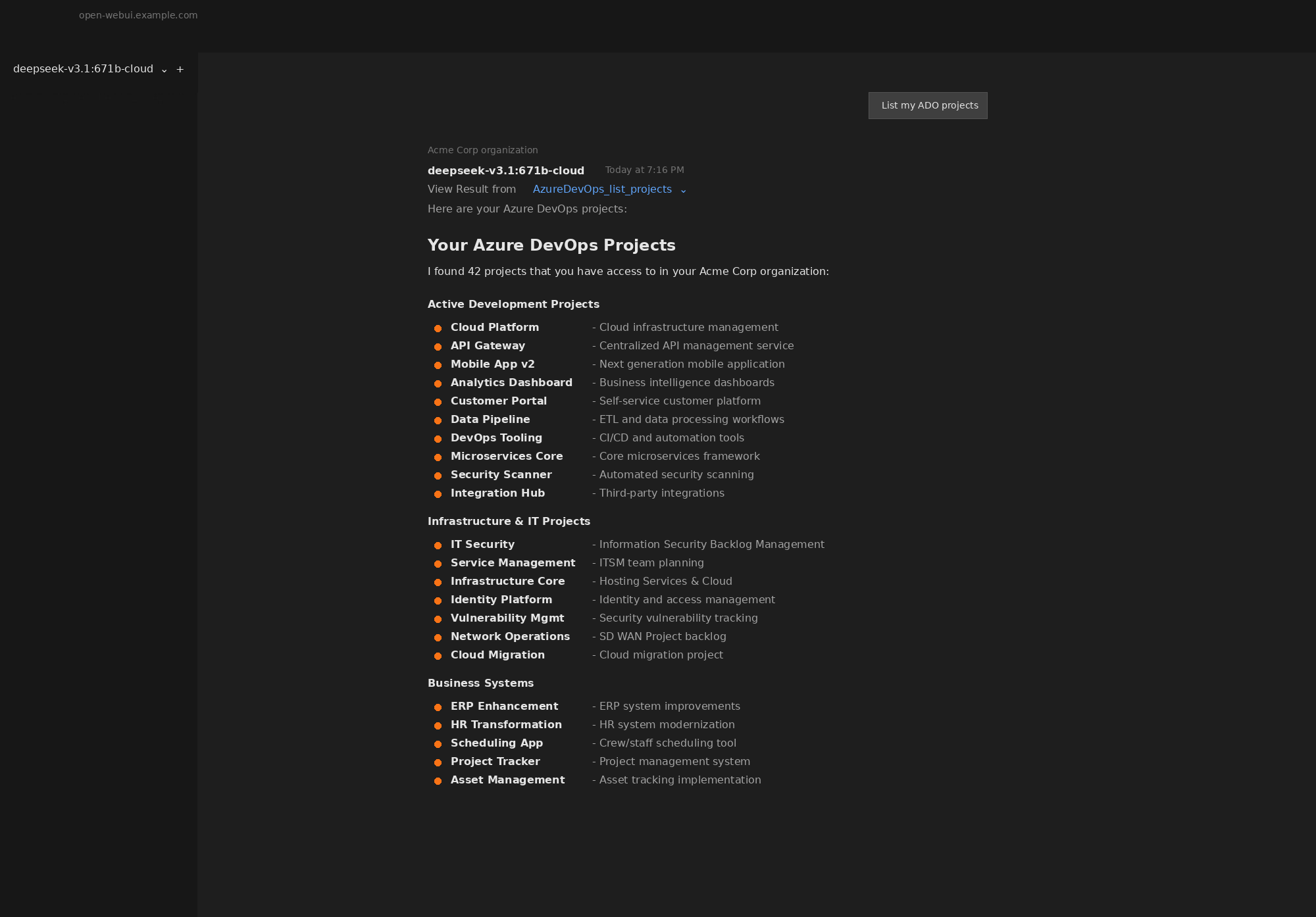
Result
Once configured, you can ask the AI to interact with Azure DevOps directly:
Via Traefik IngressRoute
apiVersion: traefik.io/v1alpha1
kind: IngressRoute
metadata:
  name: azure-devops-mcp
  namespace: toolhive-system
spec:
  entryPoints:
    - websecure
  routes:
    - match: Host(`mcp-ado.example.com`)
      kind: Rule
      services:
        - name: azure-devops
          port: 8080
  tls:
    certResolver: letsencrypt
For long-running MCP connections, you may want to add a Middleware for timeouts:
apiVersion: traefik.io/v1alpha1
kind: Middleware
metadata:
  name: mcp-timeouts
  namespace: toolhive-system
spec:
  headers:
    customResponseHeaders:
      X-Custom-Response-Header: "mcp"
---
apiVersion: traefik.io/v1alpha1
kind: ServersTransport
metadata:
  name: mcp-transport
  namespace: toolhive-system
spec:
  forwardingTimeouts:
    dialTimeout: 30s
    responseHeaderTimeout: 0s  # Disable for SSE
    idleConnTimeout: 90s
Troubleshooting
Pod fails with npm/npx errors
npm error enoent ENOENT: no such file or directory, mkdir '/home/node/.npm'Cause: The container filesystem is read-only. NPX cannot create its cache directory.
Solution: Use a custom container image with pre-installed dependencies (see step 4).
Timeout waiting for response
{"level":"warn","msg":"Timeout waiting for response for method=tools/list"}Cause: The proxy cannot attach to the MCP server container.
Solutions:
- Check if the MCP server pod is running:
kubectl get pods -n toolhive-system - Check MCP server logs:
kubectl logs azure-devops-0 -n toolhive-system - Verify the image has a proper entrypoint that starts the MCP server
Authentication errors from Azure DevOps
TF400813: The user is not authorized to access this resource.Cause: PAT token lacks required permissions or has expired.
Solutions:
- Verify PAT hasn’t expired
- Check PAT has all required scopes
- Verify the secret is correctly mounted:
kubectl get secret azure-devops-creds -n toolhive-system -o yaml
Connection refused from Open WebUI
Cause: Network policy or service configuration issue.
Solutions:
- Check service exists:
kubectl get svc -n toolhive-system | grep azure-devops - Test from within cluster:
kubectl run curl --rm -it --image=curlimages/curl -- curl http://azure-devops.toolhive-system.svc:8080/mcp - Check for NetworkPolicies blocking traffic
Security Considerations
PAT Token Scope
Follow the principle of least privilege. Only grant the scopes your use case actually needs:
| Use Case | Required Scopes |
|---|---|
| Read-only exploration | Code (Read), Work Items (Read), Build (Read) |
| Work item management | Work Items (Read & Write) |
| Code changes | Code (Read & Write) |
| Full automation | All scopes listed above |
Network Isolation
Consider using NetworkPolicies to restrict which pods can access the MCP server:
apiVersion: networking.k8s.io/v1
kind: NetworkPolicy
metadata:
  name: azure-devops-mcp-access
  namespace: toolhive-system
spec:
  podSelector:
    matchLabels:
      app: azure-devops
  ingress:
    - from:
        - namespaceSelector:
            matchLabels:
              name: open-webui
      ports:
        - port: 8080
Audit Logging
All actions performed through the MCP server are logged in Azure DevOps audit logs under the PAT owner’s identity. Review these regularly for unexpected activity.