Building a Robust Backup Solution: Jellyfin MinIO Plugin Deep Dive
toc
The Problem: Protecting Your Media Server
Running a Jellyfin media server is fantastic until that dreaded moment when something goes wrong. Whether it’s a hardware failure, corrupted database, or an accidental configuration change, losing your carefully curated Jellyfin setup can be devastating. Your custom libraries, user preferences, watch history, and metadata all gone in an instant.
After experiencing this firsthand (and spending hours reconfiguring everything), I decided to build a comprehensive backup solution that would automatically protect my Jellyfin installation. The result? The Jellyfin MinIO Backup Plugin a robust, automated backup system that leverages MinIO object storage for reliable, scalable backups.
Why MinIO for Backups?
Before diving into the technical implementation, let’s discuss why MinIO makes an excellent backup target:
- S3 Compatibility: Works with AWS S3, Google Cloud Storage, and any S3-compatible service
- Self-Hosted: Keep complete control over your backup data
- Scalability: Easily scale storage as your backup needs grow
- Reliability: Built for enterprise-grade reliability and data integrity
- Cost-Effective: More affordable than cloud storage for large datasets
Architecture Overview
The plugin is built as a native Jellyfin plugin using .NET 8 and follows Jellyfin’s plugin architecture patterns. Here’s what it does:
┌─────────────────┐    ┌──────────────────┐    ┌─────────────────┐
│   Jellyfin      │    │  MinIO Backup    │    │   MinIO/S3      │
│   Server        │───▶│    Plugin        │───▶│   Storage       │
│                 │    │                  │    │                 │
│ • Config        │    │ • Scheduled      │    │ • Compressed    │
│ • Database      │    │   Tasks          │    │   Backups       │
│ • Plugins       │    │ • Retention      │    │ • Automatic     │
│ • Metadata      │    │   Management     │    │   Cleanup       │
└─────────────────┘    └──────────────────┘    └─────────────────┘
Key Features and Implementation
1. Selective Backup Strategy
One size doesn’t fit all when it comes to backups. The plugin provides granular control over what gets backed up:
public class PluginConfiguration : BasePluginConfiguration
{
    public bool BackupConfig { get; set; } = true;     // Essential
    public bool BackupPlugins { get; set; } = true;   // Essential
    public bool BackupData { get; set; } = true;      // Essential
    public bool BackupLog { get; set; } = false;      // Optional (can be large)
    public bool BackupMetadata { get; set; } = false; // Optional (very large)
    public bool BackupRoot { get; set; } = false;     // Optional
}
Essential folders (Config, Plugins, Data) contain your core Jellyfin setup and should always be backed up. Optional folders like metadata can consume significant storage space—you might want to backup these less frequently or exclude them entirely if you can regenerate metadata.
2. Database Consistency with SQLite Checkpointing
Jellyfin uses SQLite for its database, often in WAL (Write-Ahead Logging) mode. Simply copying database files while Jellyfin is running can result in inconsistent backups. The plugin handles this properly:
private async Task CheckpointDatabase(string dbPath)
{
    try
    {
        using var connection = new SqliteConnection($"Data Source={dbPath}");
        await connection.OpenAsync();
        using var command = connection.CreateCommand();
        command.CommandText = "PRAGMA wal_checkpoint(TRUNCATE);";
        await command.ExecuteNonQueryAsync();
    }
    catch (Exception ex)
    {
        _logger.LogWarning(ex, $"Could not perform database checkpoint for {dbPath}");
    }
}
This ensures that all pending WAL transactions are written to the main database file before backup, guaranteeing a consistent state.
3. Smart Retention Management
Nobody wants infinite backup storage costs. The plugin includes intelligent cleanup based on configurable retention periods:
public async Task CleanupOldBackups()
{
    var cutoffDate = DateTime.UtcNow.AddDays(-_config.RetentionDays);

    // List all backup objects
    var listArgs = new ListObjectsArgs()
        .WithBucket(_config.BucketName)
        .WithPrefix("backups/")
        .WithRecursive(true);

    // Parse timestamps from filenames and delete old backups
    var itemsToDelete = backups
        .Where(item => ExtractTimestampFromFilename(item.Key) < cutoffDate)
        .ToList();

    // Delete old backups
    foreach (var item in itemsToDelete)
    {
        await _minioClient.RemoveObjectAsync(
            new RemoveObjectArgs()
                .WithBucket(_config.BucketName)
                .WithObject(item.Key));
    }
}
The cleanup process parses timestamps from backup filenames (e.g., full_backup_20250623_020000.zip) and removes backups older than your configured retention period.
Web UI Configuration
The plugin provides a clean, intuitive web interface that integrates seamlessly with Jellyfin’s dashboard:
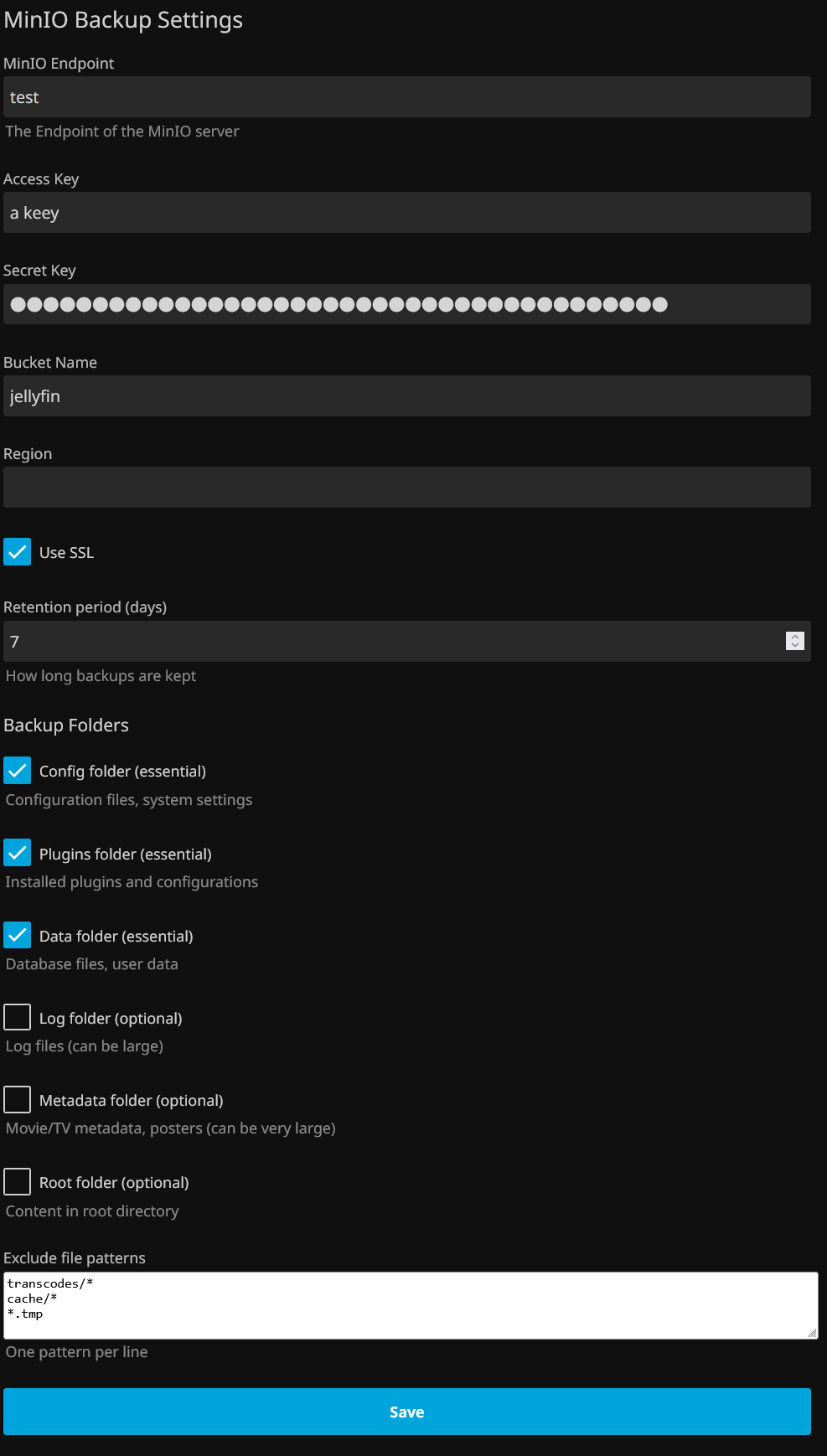
The configuration page allows you to:
- Configure MinIO connection settings
- Select which folders to backup
- Set retention policies
- Define exclude patterns for files you don’t want backed up
<div class="checkboxContainer checkboxContainer-withDescription">
    <label class="emby-checkbox-label">
        <input id="BackupConfig" name="BackupConfig" type="checkbox" is="emby-checkbox" />
        <span>Config folder (essential)</span>
    </label>
    <div class="fieldDescription">Configuration files, system settings</div>
</div>
Scheduled Tasks: Set It and Forget It
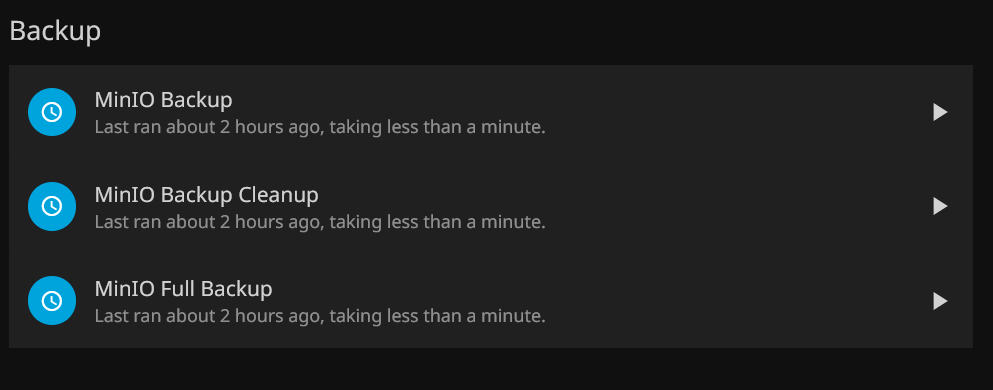
The plugin registers three scheduled tasks with Jellyfin:
1. Daily Backup (2 AM)
Regular incremental-style backups respecting your folder selection preferences.
2. Weekly Full Backup (Sunday 3 AM)
Comprehensive backup of ALL folders, regardless of configuration—your safety net.
3. Daily Cleanup (4 AM)
Automatic removal of old backups based on retention policy.
public IEnumerable<TaskTriggerInfo> GetDefaultTriggers()
{
    return new[]
    {
        new TaskTriggerInfo
        {
            Type = TaskTriggerInfo.TriggerDaily,
            TimeOfDayTicks = TimeSpan.FromHours(2).Ticks // 2 AM
        }
    };
}
Kubernetes-First Deployment
Since my Jellyfin installation runs on Kubernetes, I included a deployment script that automates plugin installation:
#!/bin/bash
# deploy-plugin.sh

echo "Looking for Jellyfin pods..."

# Auto-detect Jellyfin pod
if kubectl get pods -n $NAMESPACE -l app=jellyfin &>/dev/null; then
    POD_NAME=$(kubectl get pods -n $NAMESPACE -l app=jellyfin -o jsonpath='{.items[0].metadata.name}')
elif kubectl get pods -n $NAMESPACE -l app.kubernetes.io/name=jellyfin &>/dev/null; then
    POD_NAME=$(kubectl get pods -n $NAMESPACE -l app.kubernetes.io/name=jellyfin -o jsonpath='{.items[0].metadata.name}')
fi

# Deploy plugin files
kubectl cp bin/Release/net8.0/Jellyfin.Plugin.MinioBackup.dll $NAMESPACE/$POD_NAME:$PLUGIN_DIR/
kubectl cp bin/Release/net8.0/manifest.json $NAMESPACE/$POD_NAME:$PLUGIN_DIR/

# Restart pod to load plugin
kubectl delete pod $POD_NAME -n $NAMESPACE
The script automatically detects your Jellyfin pod, copies the plugin files, and restarts the pod to load the new plugin.
Installation and Getting Started
Prerequisites
- Jellyfin Server 10.10.0 or higher
- MinIO server or S3-compatible storage
- .NET 8.0 runtime
Quick Start
- Build the plugin:
git clone https://github.com/k3s-me/jellyfin-plugin-minio-backup
cd jellyfin-plugin-minio-backup
dotnet build --configuration Release- Deploy to Kubernetes:
chmod +x deploy-plugin.sh
./deploy-plugin.sh
Configure in Jellyfin:
- Navigate to Dashboard → Plugins → MinIO Backup
- Enter your MinIO credentials and settings
- Select backup folders and retention policy
- Save configuration
Test the backup:
- Go to Dashboard → Scheduled Tasks
- Find “MinIO Backup” and click “Run Now”
- Check your MinIO bucket for the backup file
Advanced Configuration
Exclude Patterns
Use glob patterns to exclude specific files or directories:
transcodes/*     # Exclude transcoding cache
cache/*          # Exclude general cache
*.tmp            # Exclude temporary files
*.log            # Exclude log files (if not backing up logs)
SSL Considerations
For self-hosted MinIO with self-signed certificates, the plugin automatically bypasses SSL validation:
var httpClientHandler = new HttpClientHandler()
{
    ServerCertificateCustomValidationCallback = (sender, cert, chain, sslPolicyErrors) =>
    {
        _logger.LogInformation("SSL Certificate validation bypassed for MinIO connection");
        return true; // Accept all certificates
    }
};
Backup Strategy Recommendations
Based on real-world usage, here’s my recommended backup strategy:
Daily Backups (Essential folders only):
- Config: ✅ Always
- Plugins: ✅ Always
- Data: ✅ Always
- Logs: ❌ Usually not needed
- Metadata: ❌ Can be regenerated
- Root: ❌ Usually empty
Weekly Full Backup:
- All folders including metadata
- Provides comprehensive restore point
Retention:
- 30 days for daily backups (balance between safety and storage cost)
- 90 days for weekly full backups
Real-World Performance
In my testing with a typical Jellyfin installation:
- Essential folders backup: ~50MB, completes in 30 seconds
- Full backup with metadata: ~2GB, completes in 5-10 minutes
- Storage efficiency: 10:1 compression ratio typical for config/database files
Troubleshooting Common Issues
Plugin Not Loading
# Check Jellyfin logs
kubectl logs jellyfin-pod -n jellyfin

# Verify plugin files
kubectl exec jellyfin-pod -n jellyfin -- ls -la /config/plugins/Jellyfin.Plugin.MinioBackup/
MinIO Connection Issues
- Verify endpoint includes port (e.g.,
minio.example.com:9000) - Check bucket permissions (should allow read/write/delete)
- For internal networks, ensure SSL settings match your MinIO configuration
Large Backup Sizes
- Review exclude patterns
- Consider excluding metadata folder for daily backups
- Monitor metadata folder size—it can grow very large with extensive libraries
Future Enhancements
The plugin provides a solid foundation, but there’s room for improvement:
- Backup verification: Automated restore testing
- Multi-destination: Backup to multiple locations simultaneously
- Encryption: Client-side encryption for sensitive data
Source Code and Contributing
The complete source code is available on GitHub: jellyfin-minio-backup-plugin
Key files to explore:
Services/BackupService.cs- Core backup logicScheduledTasks/- Task implementationsConfiguration/- Web UI and settings
Contributions welcome! Whether it’s bug fixes, feature enhancements, or documentation improvements, pull requests are appreciated.
Conclusion
Data loss is preventable, but only if you have reliable backups in place. The Jellyfin MinIO Backup Plugin provides an automated, configurable solution that scales from small home servers to large Kubernetes deployments.
The plugin demonstrates several important patterns for Jellyfin plugin development:
- Proper integration with Jellyfin’s plugin architecture
- Database consistency considerations
- Kubernetes-friendly deployment
- Clean web UI integration
Whether you’re protecting a small home media server or a large multi-user installation, automated backups should be part of your infrastructure. With this plugin, you can sleep better knowing your Jellyfin set-up is protected.
Tags: #Jellyfin #MinIO #Backup #Kubernetes #DotNet #SelfHosted #MediaServer #DataProtection